Workspace, integrations, and data
Workspace files
The Workspace area provides a consistent file browser for the local computer, hardened containers, SSH hosts, and supported cloud sandboxes. Select the backend at the top of the view; the same policy follows file and terminal actions.
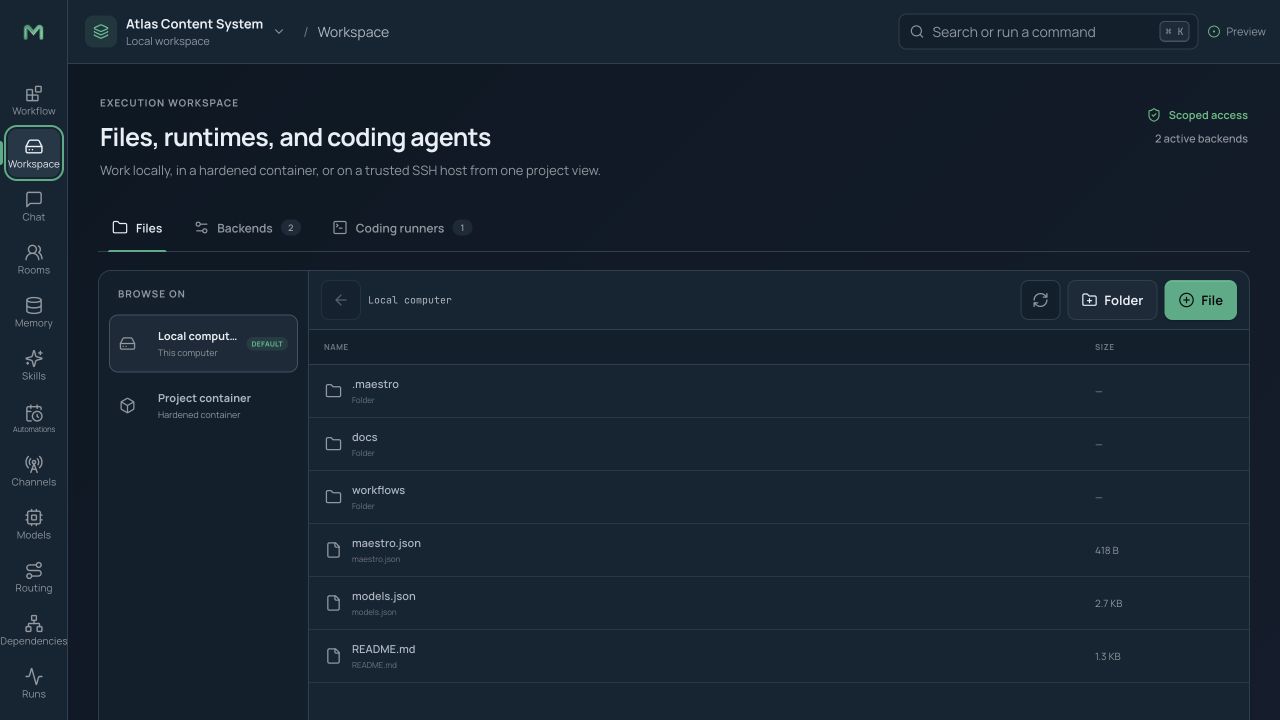
You can browse, create, rename, upload, download, delete, and view files. Text formats use the built-in highlighted editor. Write actions are checked against the sandbox, limited to allowed paths, and written to the audit log.
Use Attach to chat or a workflow input reference to pass a backend file without downloading and uploading it manually. Files returned by an agent likewise appear in the session and backend workspace.
Execution backends
Backends determine where shell commands, code, file tools, browser tools, and coding agents execute.
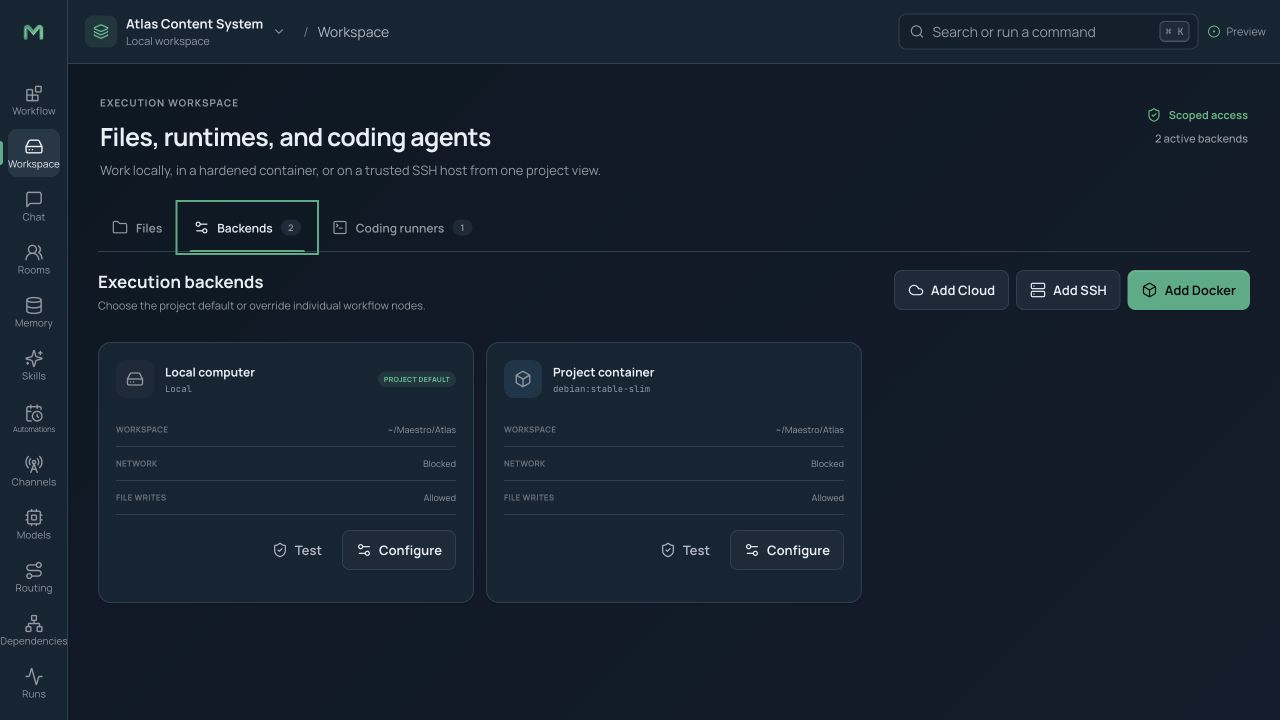
Local computer
Local execution has the least isolation. Use it for trusted project tasks that need local tools and files. Shell, network, and write permissions remain controlled individually.
Hardened Docker
Docker is the recommended default for shell-enabled agents. Maestro can use a read-only root filesystem, dropped Linux capabilities, no-new-privileges, process and resource limits, a non-executable temporary area, an isolated writable workspace mount, and no network unless policy grants it.
SSH remote
SSH runs tools on a remote host. Credentials are vault references, and the first trusted connection records the host fingerprint. A changed fingerprint blocks reconnection until it is reviewed.
Cloud sandbox
Modal/Daytona-class cloud backends use the same interface and can sleep when idle and wake on demand where supported. The backend state is visible before a run. Cloud workspaces are external data boundaries; review the provider and selected upload scope.
Choose a project default, then override a particular node or tool only where needed. Canvas badges identify remote execution, and the run event log records the backend for every tool call. Sandbox policy is uniform across backend types.
Terminals and coding-agent runners
Terminal sessions can attach to any configured backend. Create, name, switch, and close several sessions from the desktop or remote console. Output streams in real time through a PTY-style connection.
The Coding runners view launches compatible terminal coding agents inside a chosen workspace and backend. The runner appears as a Maestro session, and its output is visible in the terminal panel.
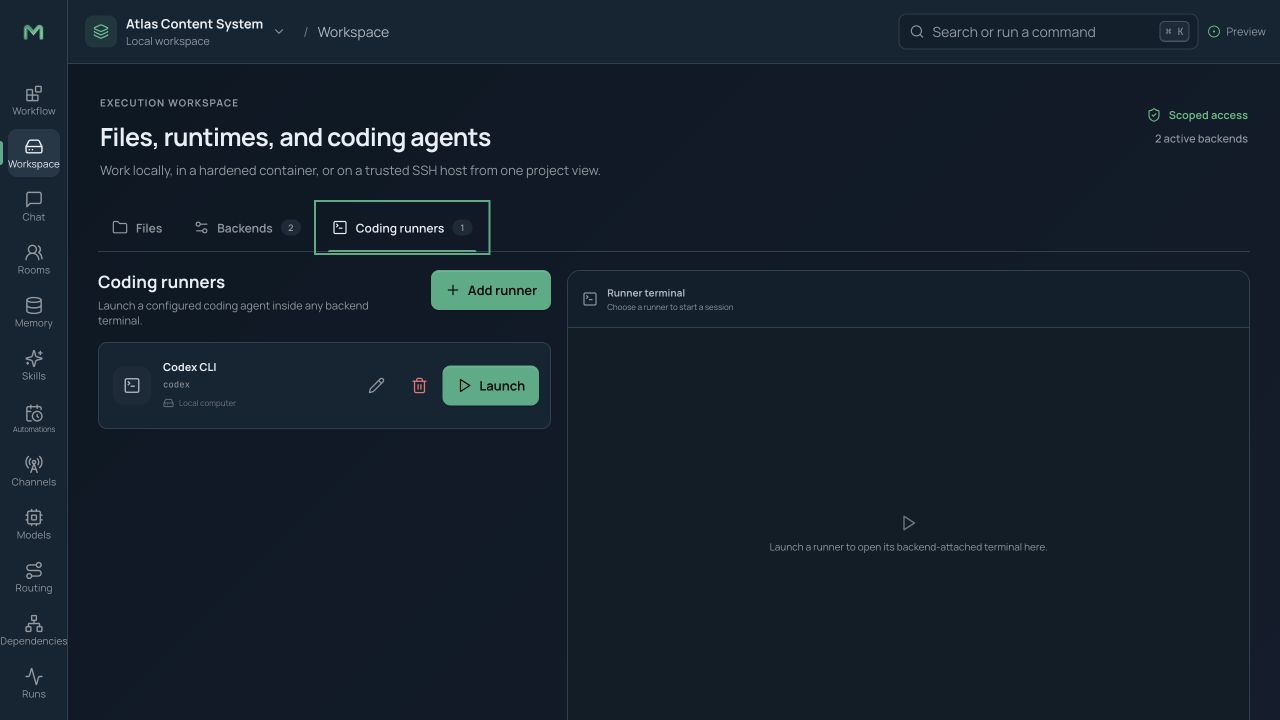
Runner access does not bypass policy. File writes, network, shell, and privileged actions still require the backend's grants and approvals.
Web search, extraction, and browser tools
Open Settings → Web tools to configure search providers, extraction limits, browser behavior, and safe-domain rules.
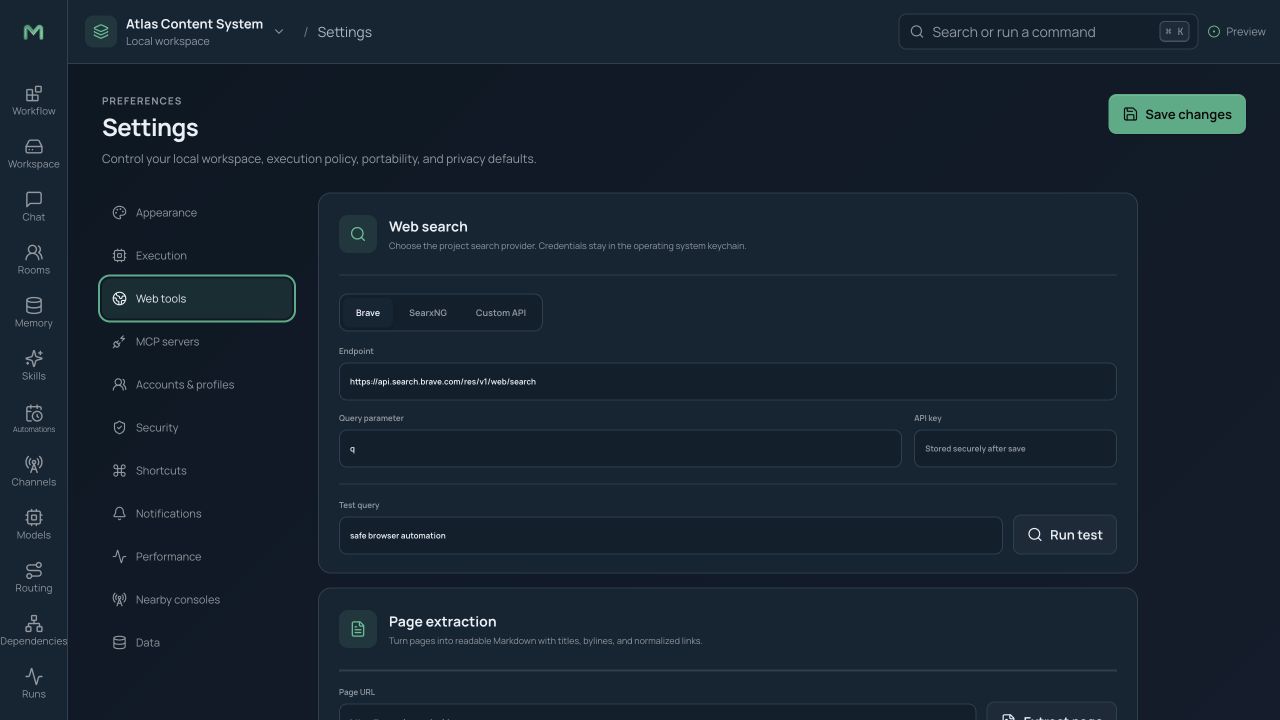
Web search and URL-to-clean-Markdown extraction are available to agents and as canvas Tool nodes. Full browser automation can navigate, click, type, scroll, and capture screenshots. Every action is recorded in the run log; a vision-capable route can analyze screenshots to close the observe-and-act loop.
Browser safety rules treat page content as untrusted data rather than instructions. Automation refuses credential and payment fields, limits redirects and response size, and requires approval before a remotely initiated session visits a new domain. Add a narrow allowlist instead of granting unrestricted browsing.
MCP servers
MCP lets a project or profile attach external tool servers over local standard input/output or HTTP. Their tools can appear in agent allowlists and as workflow Tool nodes.
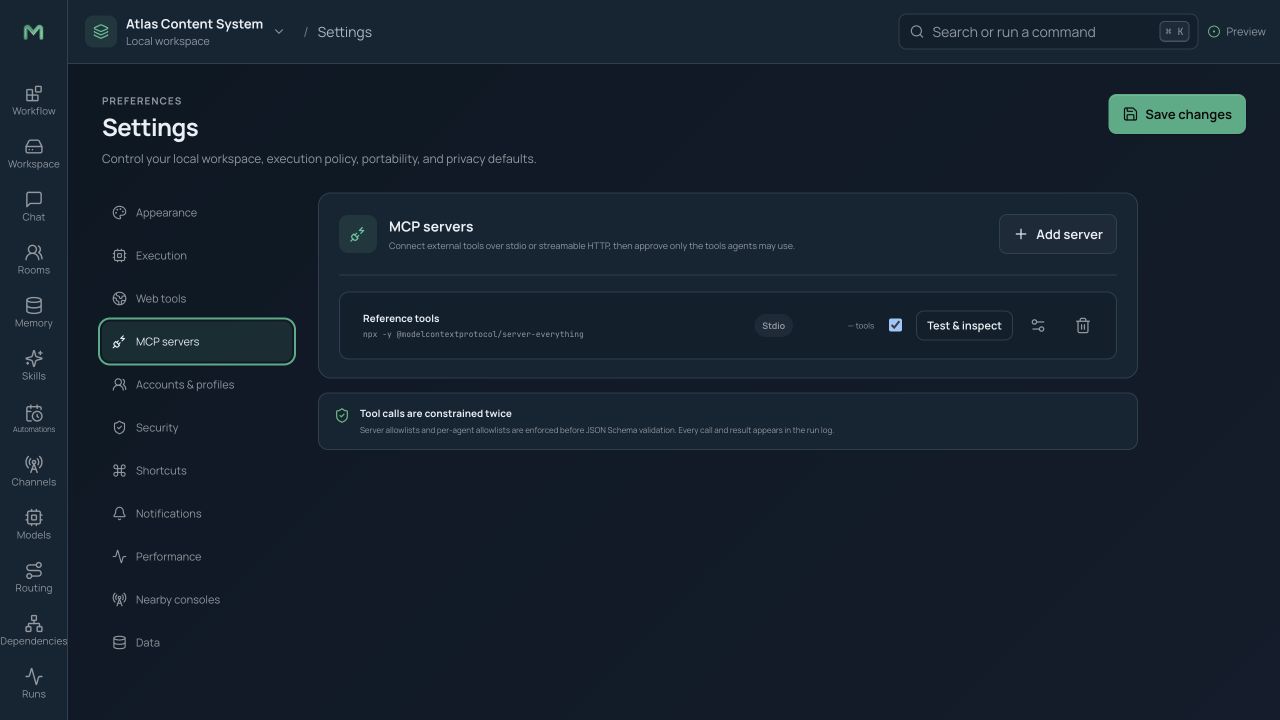
To add a server:
- Open Settings → MCP and choose Add server.
- Select local or HTTP transport and enter its command or address.
- Reference any required secret from the credential vault.
- Connect and review discovered tools and resources.
- Enable only the tools needed by the project or profile.
Tool schemas are validated before use. A server can be disabled without restarting Maestro. Native and MCP tools share the same allowlists, backend restrictions, approval flow, and event logging. The remote console exposes operational MCP management to authorized users.
Generic providers, tools, and node extensions
The generic HTTP provider adapter supports a new model service without writing Maestro code. Define request headers and body templates, then map response fields and errors. Store secrets as credential references rather than literal headers.
HTTP Tool nodes provide a similar configurable integration for ordinary APIs. Custom node manifests and scripts can add project-specific behavior; executable code remains subject to skill review, backend sandboxing, and approval policy. The versioned plugin interface is intended for broader extensions.
Generic messaging bridge
An external bridge connects over authenticated WebSocket and exchanges normalized inbound, outbound, typing, file, and voice frames. Configure it under Channels. Production bridges should use wss://, compare the shared secret safely, restrict origin or IP access, use short-lived HTTPS file links, and reconnect with backoff.
After the bridge authenticates, Maestro still applies identity pairing, chat allowlists, rate limits, voice routing, and tool approvals. Unknown message fields are ignored for forward compatibility.
Data lab and batch generation
The Data lab runs an agent or workflow over a CSV or JSONL dataset and collects tool-call trajectories for evaluation or training.
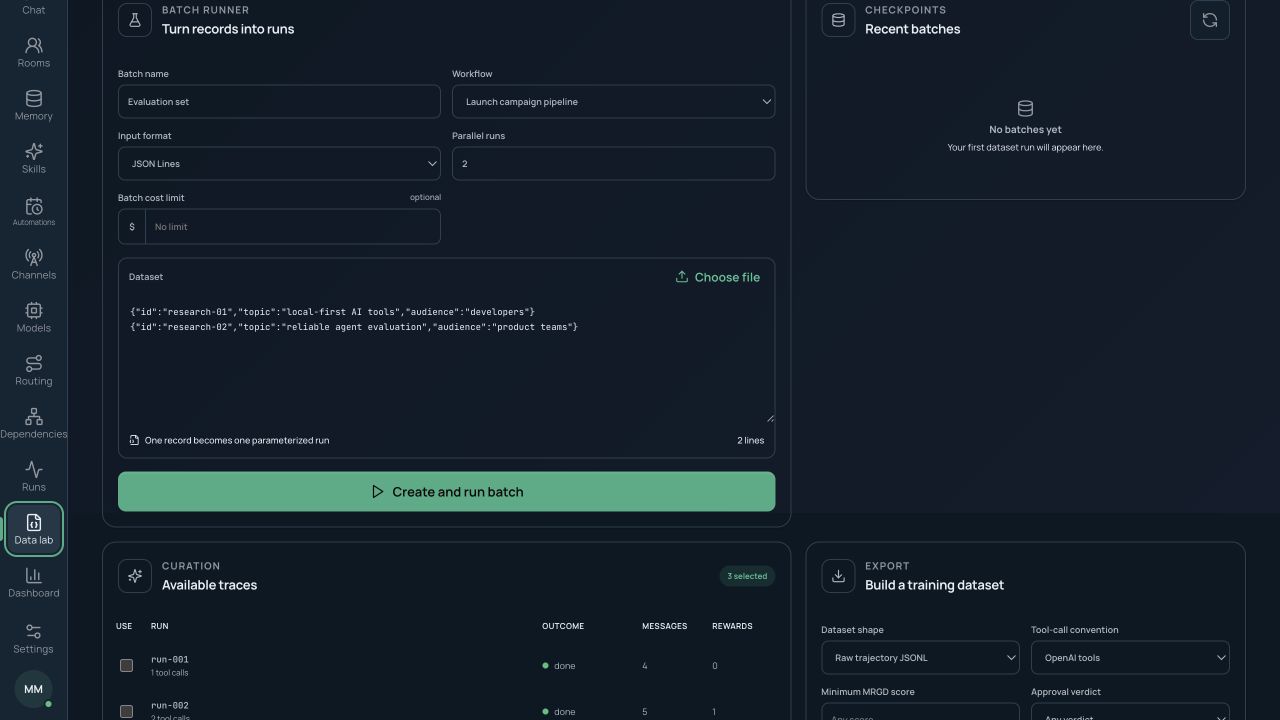
Run a batch
- Open Data lab and choose a CSV or JSONL input.
- Map dataset fields to workflow or prompt inputs.
- Select the workflow/agent, routing matrix, backend, concurrency, and budgets.
- Choose an output location and start the batch.
- Monitor completed, failed, remaining, cost, and checkpoint state.
Batches checkpoint progress and resume without repeating successful rows. Stop safely before changing routing or policy. Each row links to its normal run record.
Curate trajectories
Filter by success, human approval, or minimum MRGD reward. Inspect prompts, responses, tool calls, artifacts, and source row before including an item. Platform user identifiers are pseudonymized by default.
Optional compression can drop or summarize nonessential turns. Maestro records a deterministic manifest of every transformation so the export can be reproduced and audited.
Export formats
- ShareGPT JSONL for common chat fine-tuning pipelines.
- Raw JSONL for complete Maestro event and trajectory data.
- Tool-call serialization using selectable common parser conventions.
- Optional live stream of trajectories and reward signals to an external reinforcement-learning system.
The export panel warns that prompts, outputs, images, tool results, and memory-derived content may cross an external data boundary. Review the selected records and destination before confirming.
Workspace data boundaries
Use local models and backends when a workflow must remain on the computer. Routing tags can enforce local-only, no-PII, or regional requirements. Hosted models, search, cloud sandboxes, messaging channels, MCP HTTP servers, generic APIs, and external trainers each form a separate boundary; Maestro records contacted endpoints and payload sizes so a run can be audited later.
Next: Manage profiles, security, the service, remote access, backups, and updates.