Administration and operations
Accounts, profiles, and roles
Profiles are isolated operational spaces. Each profile has its own sessions, rooms, jobs, uploads, analytics, memory, enabled skills, and MCP servers. Projects may be shared deliberately, but activity and private operating data remain scoped to the authenticated profile.
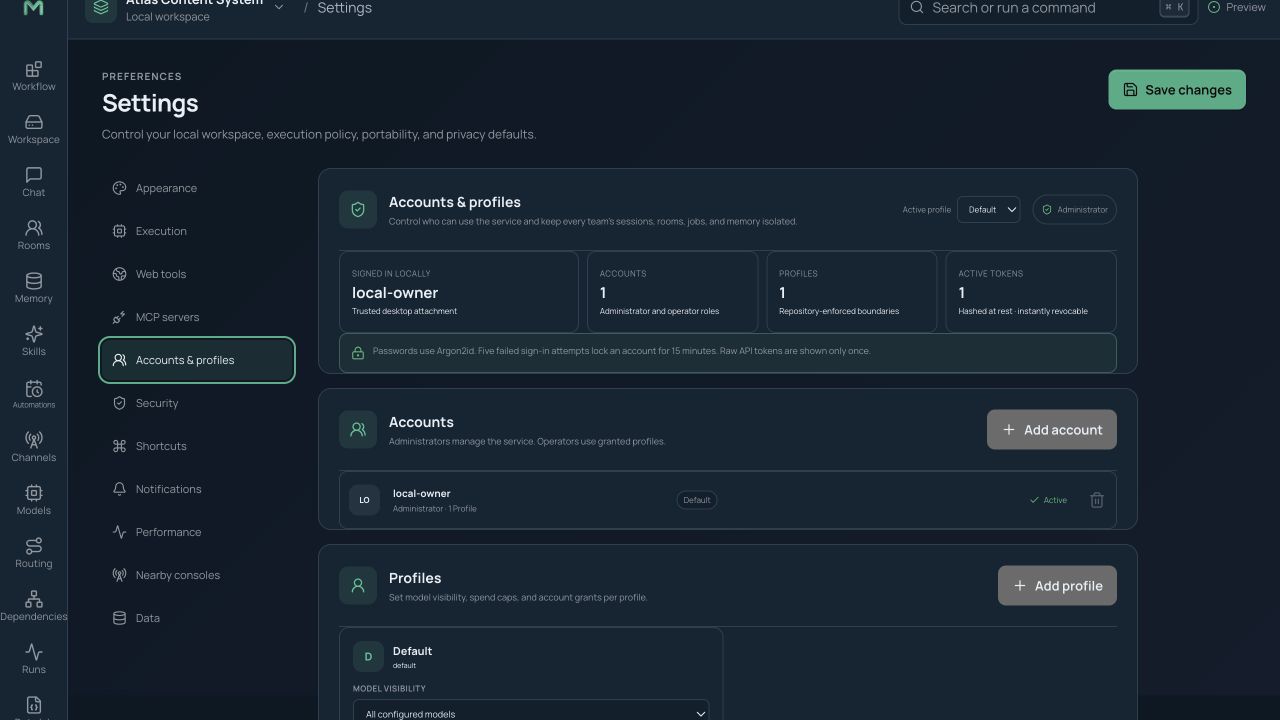
The service supports two core roles:
- Administrator: manages accounts, profiles, providers, model and credential visibility, budgets, service settings, and runtime health.
- Operator: uses the profiles and capabilities assigned by an administrator.
First-run setup requires a named administrator and a chosen password; there is no default password. Passwords use a modern password hash, and API access uses opaque expiring tokens whose stored form can be revoked safely. Repeated failed sign-ins can lock an account until an administrator unlocks it. Administrators can reset passwords, list and revoke tokens, and disable access.
For each profile, an administrator can grant only specific providers, models, credential-pool entries, tools, and project access. Profile cost budgets are enforced alongside run budgets. Role checks and profile isolation happen in the service, not only in the visible interface.
Remote console
The Maestro service hosts an authenticated console for operational work from a browser. It includes dashboard, chat, rooms, runs, memory, jobs and tasks, files and terminals, gateway channels, MCP tools, skill review, and administration.
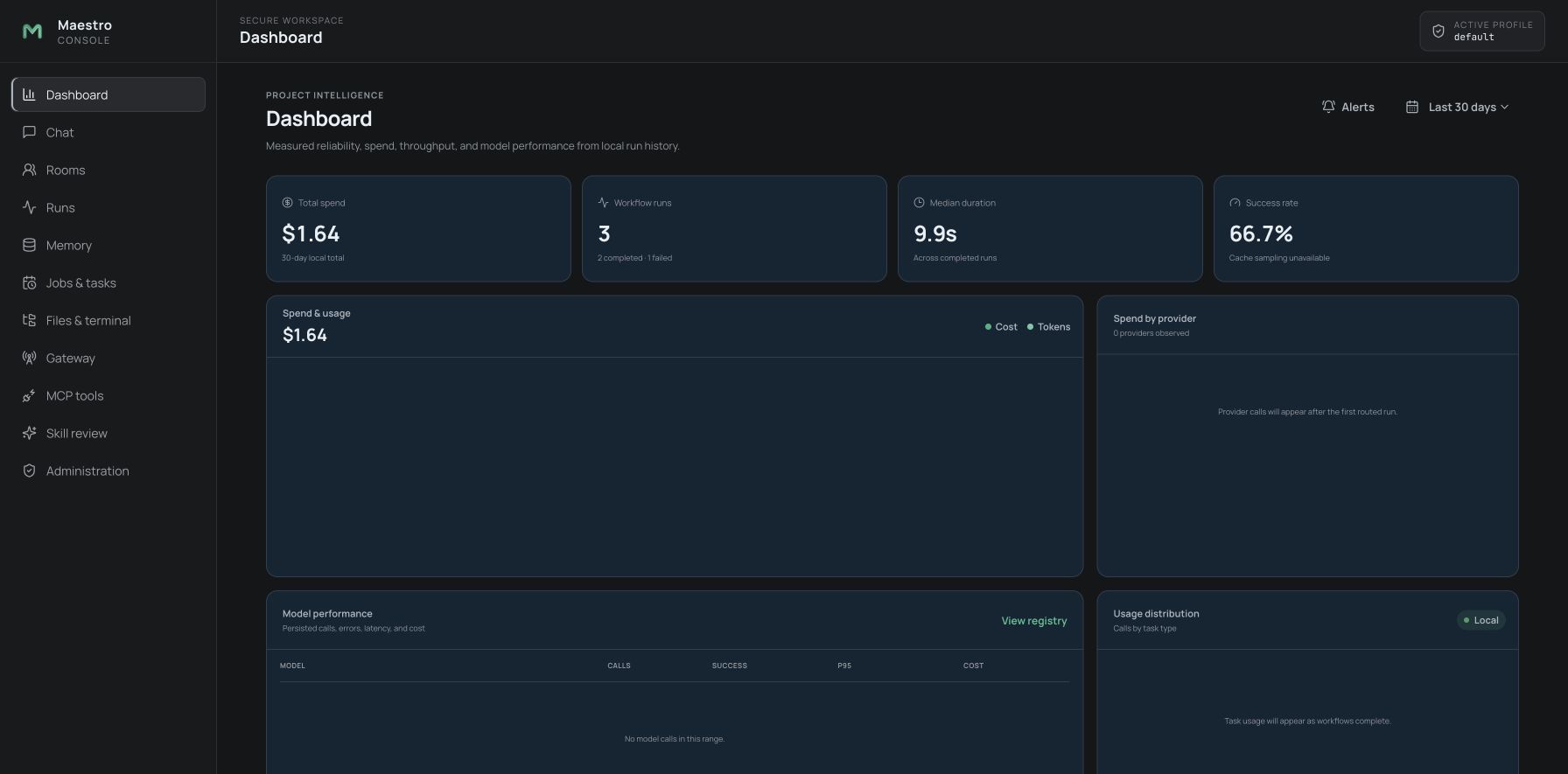
Workflow canvas and model editing are intentionally absent; use the desktop IDE for authoring. The console shows only the sessions, rooms, jobs, files, analytics, and models visible to the active profile. Runtime administration is restricted to administrators.
By default the service listens only on the local computer. To use the console from another device, an administrator must explicitly enable network access and configure TLS. Insecure network mode requires an explicit acknowledgement and should never be exposed to an untrusted network.
Background service
The maestrod service keeps schedules, gateways, rooms, the console, and headless runs working when the desktop app is closed. It shares the same event log and policy model as interactive desktop runs.
Supported installations include:
- a per-user launch service on macOS;
- a per-user system service on Linux;
- the platform service arrangement supplied for Windows builds;
- a hardened Docker container with persistent data.
The supplied container runs as an unprivileged user with a read-only root filesystem, dropped capabilities, no-new-privileges, bounded processes and memory, and only its data volume writable. Its port publishes to host loopback by default.
Network and discovery
Open Settings → Nearby services to see or change opt-in local-network discovery.
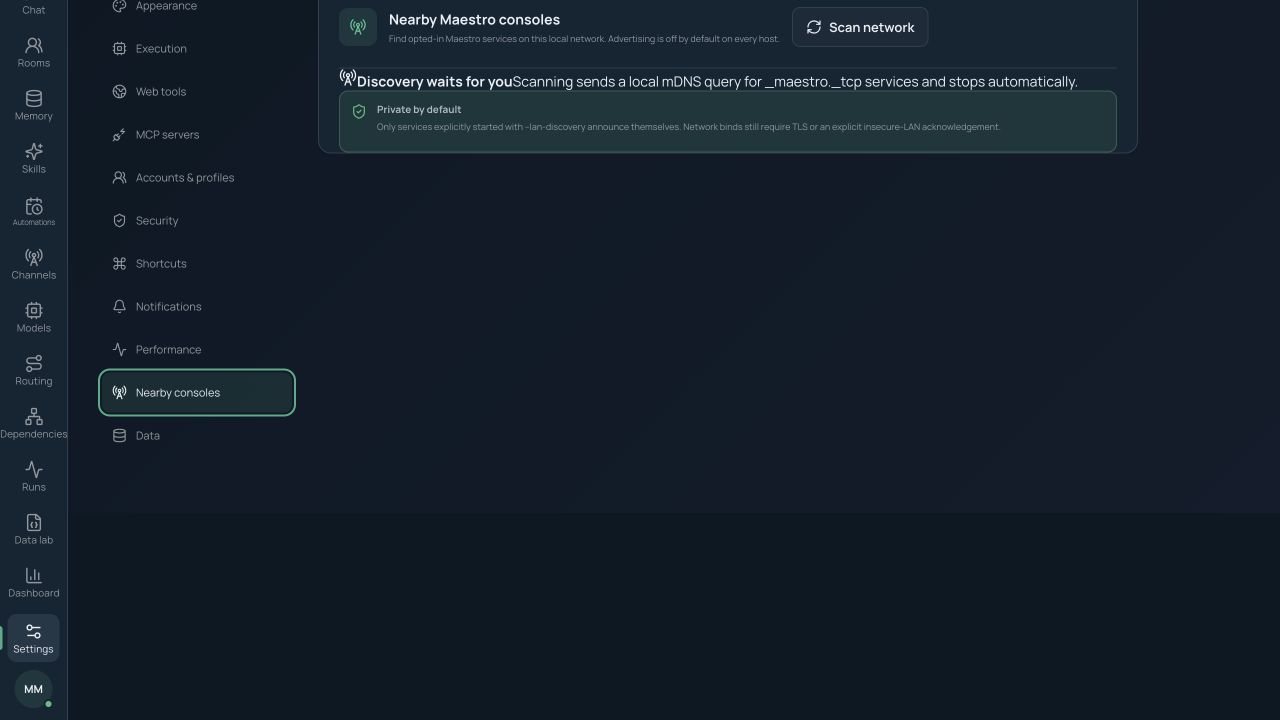
Discovery is off by default and advertises only services that are already allowed to bind to the network. It cannot bypass the TLS/network gate. Prefer a trusted network, TLS, and a firewall that limits who can reach the console.
Health and diagnostics
Open Settings → Performance to see desktop/service CPU, memory, event-queue depth, active sessions and runs, terminals, and backend status.
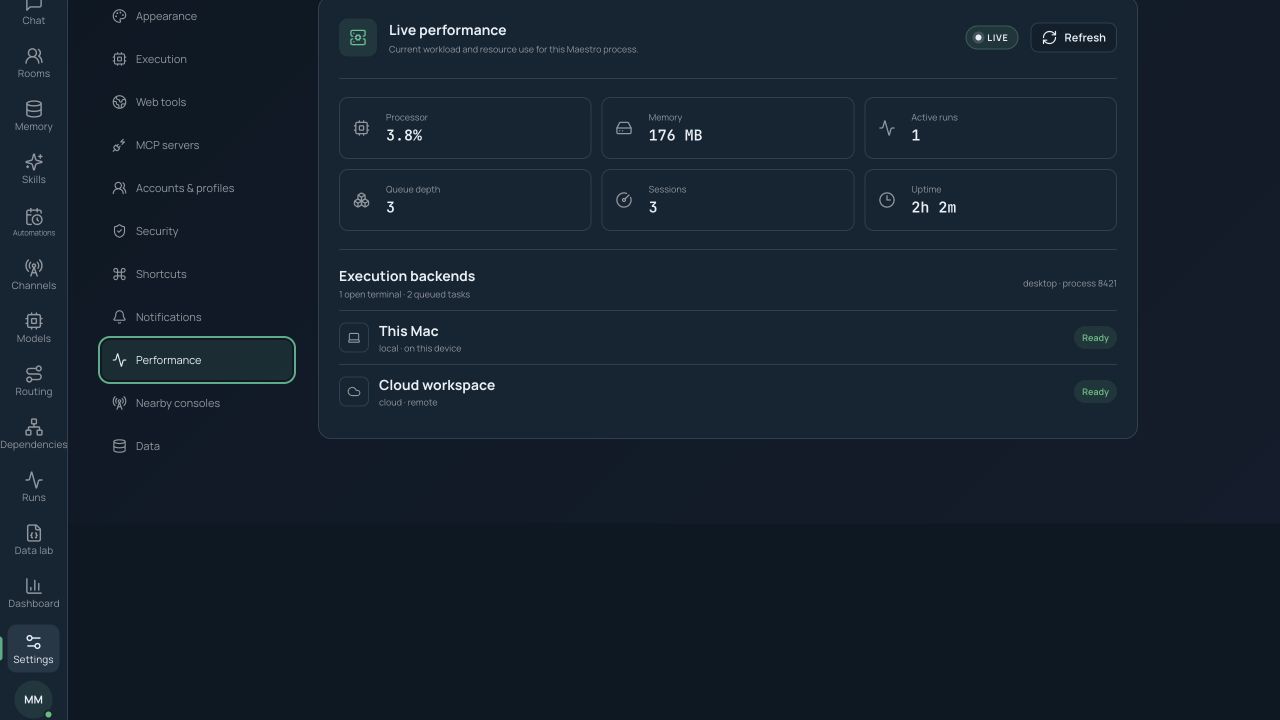
The console exposes the same live status to administrators. If the service appears unhealthy:
- Confirm that it is running and reachable at the configured address.
- Check database integrity, credential-vault access, backends, gateways, and port conflicts with the Maestro diagnostic command.
- Review recent run and service events before enabling detailed logs.
- Enable debug logging only temporarily; logs may contain project metadata even though secrets are redacted.
- For Docker, confirm the container health check and writable data volume.
The unauthenticated health endpoint reports only service availability. Full runtime details require administrator authentication.
Security and privacy
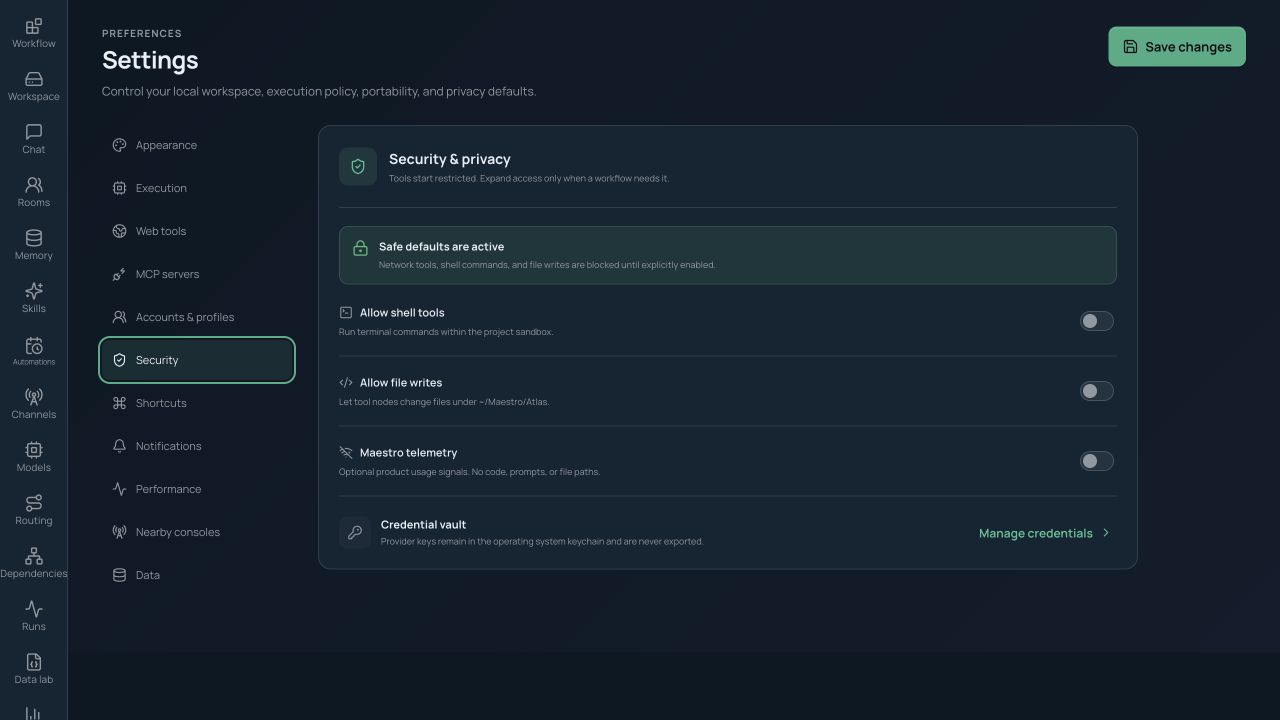
Open Settings → Security for sandbox defaults, approvals, network policy, data boundaries, and privacy controls.
Credentials and secrets
Provider keys, messaging tokens, SSH credentials, search credentials, MCP secrets, and cloud credentials are stored as vault entries. Configuration and project files contain opaque references. Secrets are masked and redacted from logs, errors, exports, and screenshots.
Tool sandbox
Shell, code execution, and file writes are off by default. Grant the smallest needed combination of paths, commands, network destinations, and backend access. Docker is recommended for agents that require a shell. Sensitive operations display a privileged-tool indicator and can pause for approval.
SSH checks host fingerprints. Browser automation refuses password/payment fields and treats page content as untrusted. Imported skills receive a safety scan, but their executable content still follows backend policy.
Network and telemetry
Product analytics are disabled by default. Local-only operation makes no non-provider network requests except user-enabled functions such as update checks. Each run records its external endpoints and payload sizes. Routing tags can prevent sensitive content from reaching ineligible providers.
Remote access
The service binds to loopback by default. A network-reachable bind requires TLS certificate and key paths, or an explicit insecure-LAN acknowledgement that leaves a persistent warning. Never use insecure mode on a public or untrusted network.
Settings guide
Appearance
Choose light, dark, or system theme, interface density, scaling behavior, and reduced motion under Settings → Appearance.
Execution
Use Settings → Execution for default backend, concurrency, rate-limit behavior, budgets, retries, autonomy, tool grants, and approval defaults.
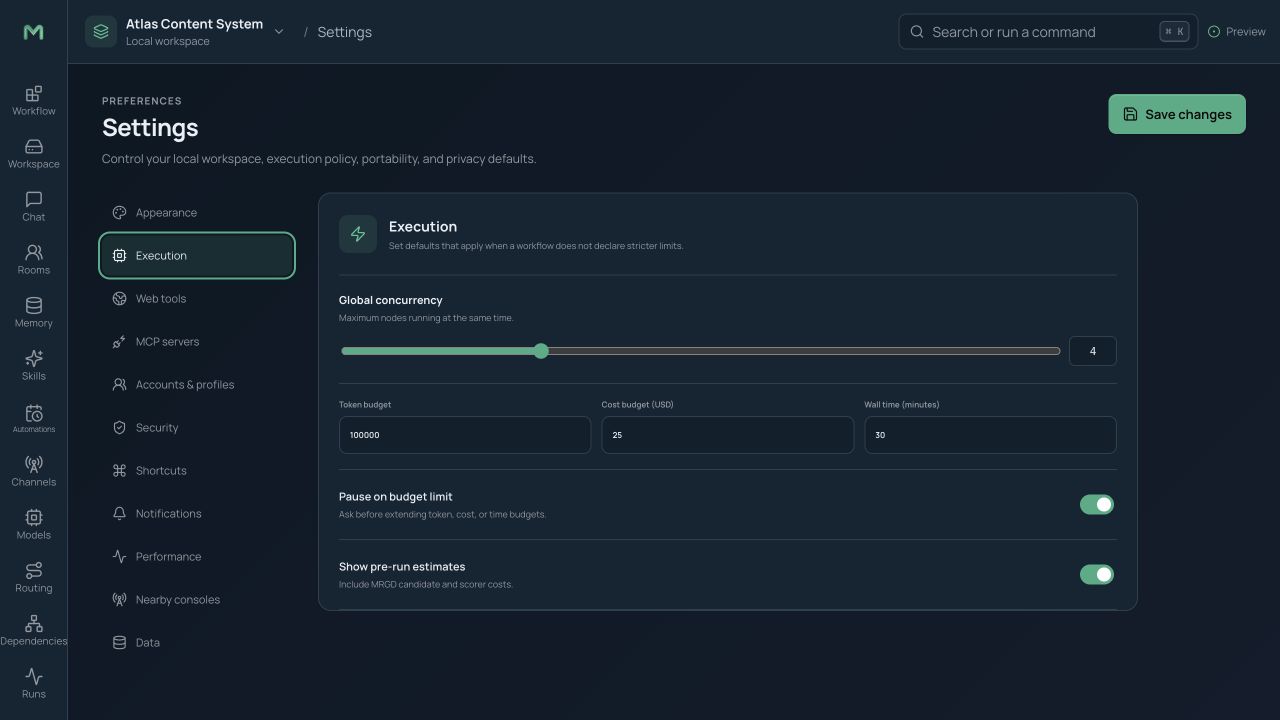
Project and node settings may narrow these defaults. A less restrictive override requires the appropriate policy and role.
Web tools and MCP
Settings → Web tools manages search and browser providers, extraction limits, domain rules, and safety. Settings → MCP manages local/HTTP servers, health, discovered tools/resources, and enablement. See Workspace, integrations, and data.
Shortcuts
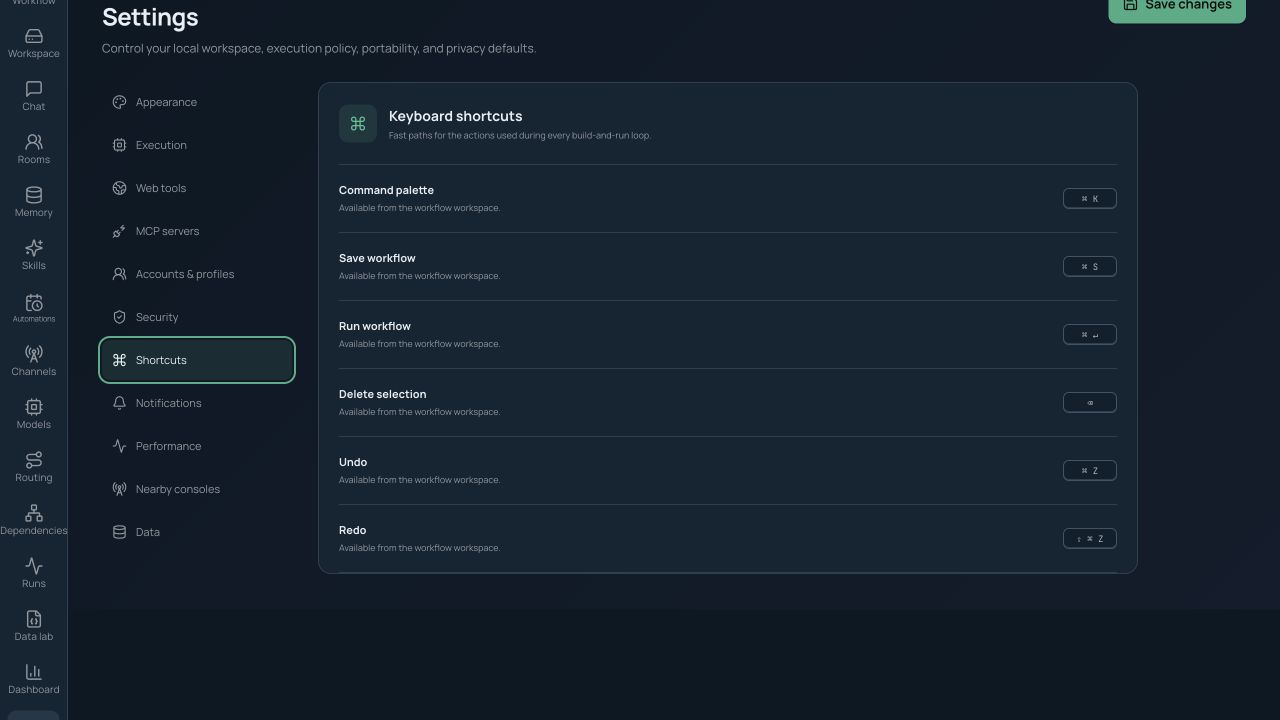
Settings → Shortcuts lists command bindings and identifies conflicts. Restore defaults or assign a custom combination.
Notifications
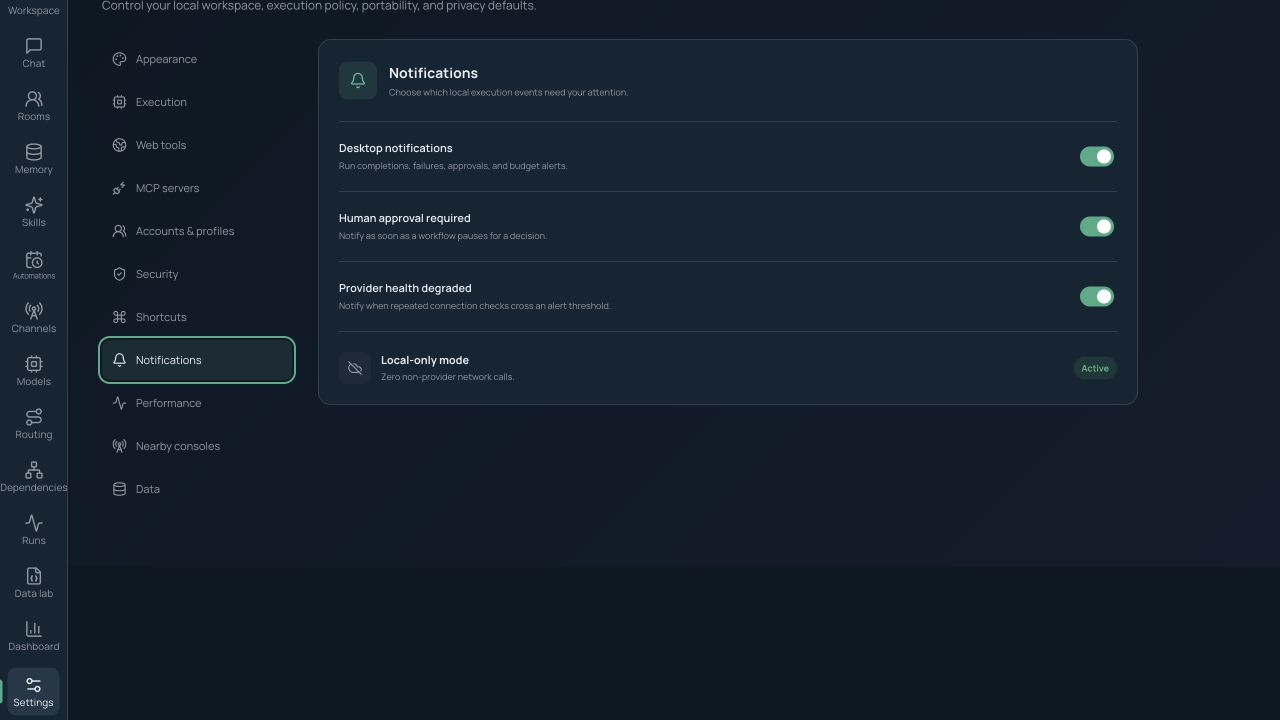
Use Settings → Notifications to choose desktop notices for run completion, failures, approvals, budgets, service health, alerts, automations, gateway pairing, and updates. Gateway delivery is configured on the alert or automation itself.
Data and updates
Settings → Data & updates controls local storage, retention, export, backup information, release channel, automatic checks, current version, and manual update actions.
Signed software updates
Maestro derives its release channel from the installed semantic version and checks at the following cadence:
| Installed build | Channel | Automatic check |
|---|---|---|
Version containing -alpha |
Alpha | Every 4 hours |
Version containing -beta |
Beta | Every 6 hours |
| Other release version | Stable | Every 24 hours |
The last attempt is stored per channel, so reopening the app does not trigger unnecessary requests. If the computer sleeps, a due check runs after the window becomes active. An available release remains visible after restart.
Check and install manually
- Open Settings → Data & updates.
- Choose Check now.
- Review the current and available version or any error.
- Choose Install and restart when ready.
- Keep Maestro open while download progress completes.
The installer is accepted only if its signature matches the public key bundled with the app. Installation is never silent and never begins from the automatic check alone. A failed check or download can be retried without losing the current project.
Users on 1.4 or earlier need one normal 1.5 installer upgrade because those older versions do not contain the updater runtime.
Backup, restore, and retention
The Maestro service data root contains its database, memory journal, sessions, skills, profiles, uploads, tasks, and service connection information. Project workspaces remain at their chosen folder paths.
For a consistent service backup:
- Pause or stop the service.
- Copy the complete service data root or Docker data volume.
- Back up project folders separately.
- Protect the backup according to the sensitivity of conversations, memory, uploads, and logs.
Restore with the same filesystem ownership, remove the transient service handshake file when moving to a different host, and restart. Scheduled jobs retain their catch-up policy. Memory files use atomic writes and a journal; malformed files are quarantined without preventing startup.
Project bundle export is best for portable authoring assets. It intentionally excludes secrets and, by default, global/profile memory. A full service backup is needed to preserve operational history and identity data.
Release and deployment notes for operators
Public macOS distribution still requires the release owner's Developer ID signing and notarization credentials. Windows trust likewise depends on production code-signing setup. Updater signing uses a separate private key held outside the repository; losing it prevents existing installations from accepting future packages signed by a replacement key unless a trusted migration release is made first.
Production service deployments should use TLS, restrict the bind interface, keep discovery off unless needed, run the built-in diagnostics after setup, monitor runtime status and provider health, and maintain tested backups.