Agent studio
Chat and sessions
Chat is the direct conversational surface for Maestro agents outside a fixed workflow. Conversations persist across restarts and can continue from the desktop, command line, remote console, or a paired messaging platform.
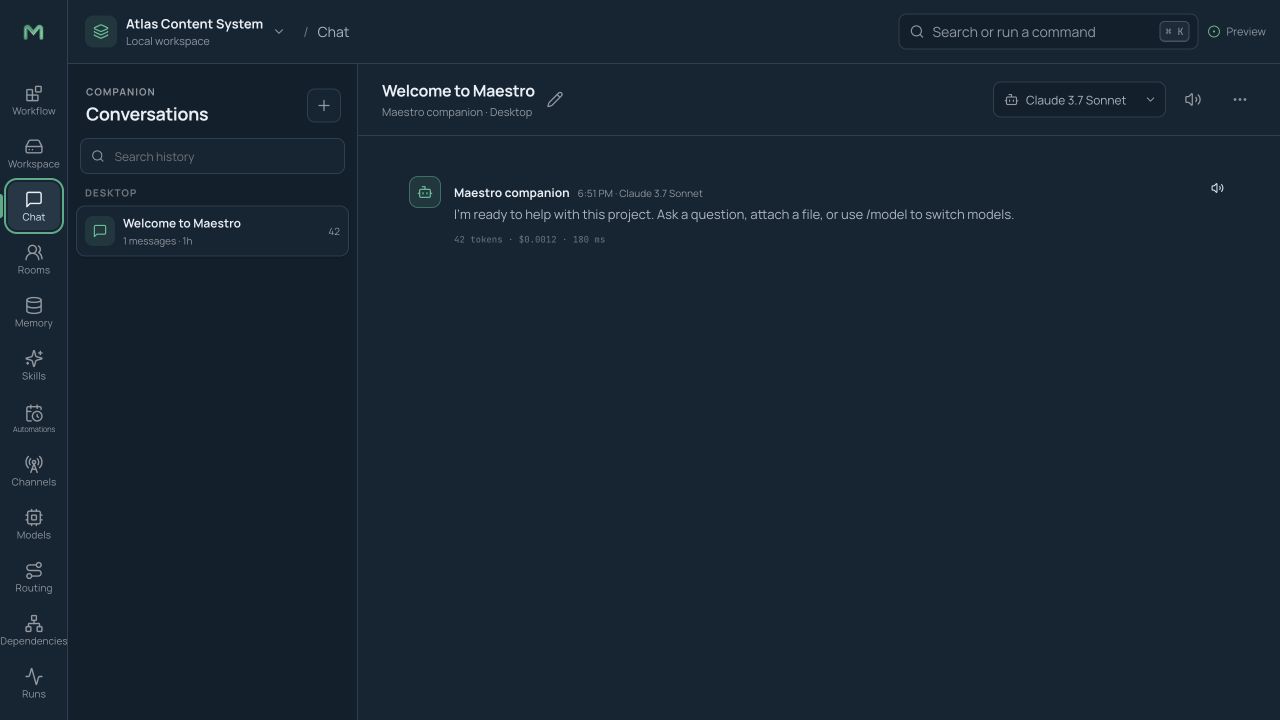
Start and manage conversations
Open Chat, choose New conversation, then select an agent or route. Conversations are grouped by their originating surface—desktop, CLI, console, Telegram, Discord, Slack, Matrix, or bridge—and can be searched, renamed, archived, or deleted. Each session tracks its own tokens and cost.
Messages support multiline editing, Markdown, highlighted code, file and image attachments, and streaming responses. Expand an inline tool trace to inspect its arguments and result. Agent-produced files appear as downloadable artifacts and can move transparently between chat and the selected execution backend.
Change direction or model
Use the stop/interrupt control while an agent is working, add corrected instructions, and continue without losing the conversation. Choose a model from the conversation header or use /model <name>; each reply shows which model produced it. Other slash commands appear through autocomplete.
Memory and privacy indicators
The composer footer shows whether the agent may access memory and whether opt-in profile learning is enabled. Project and profile policy still determine which models, credentials, tools, and files the session can use.
Voice
Choose Push to talk to record a message, or attach a supported audio file for transcription. Speech-to-text uses the active stt route, with operating-system or browser speech support as a fallback where configured. Spoken replies use the tts route and the selected voice.
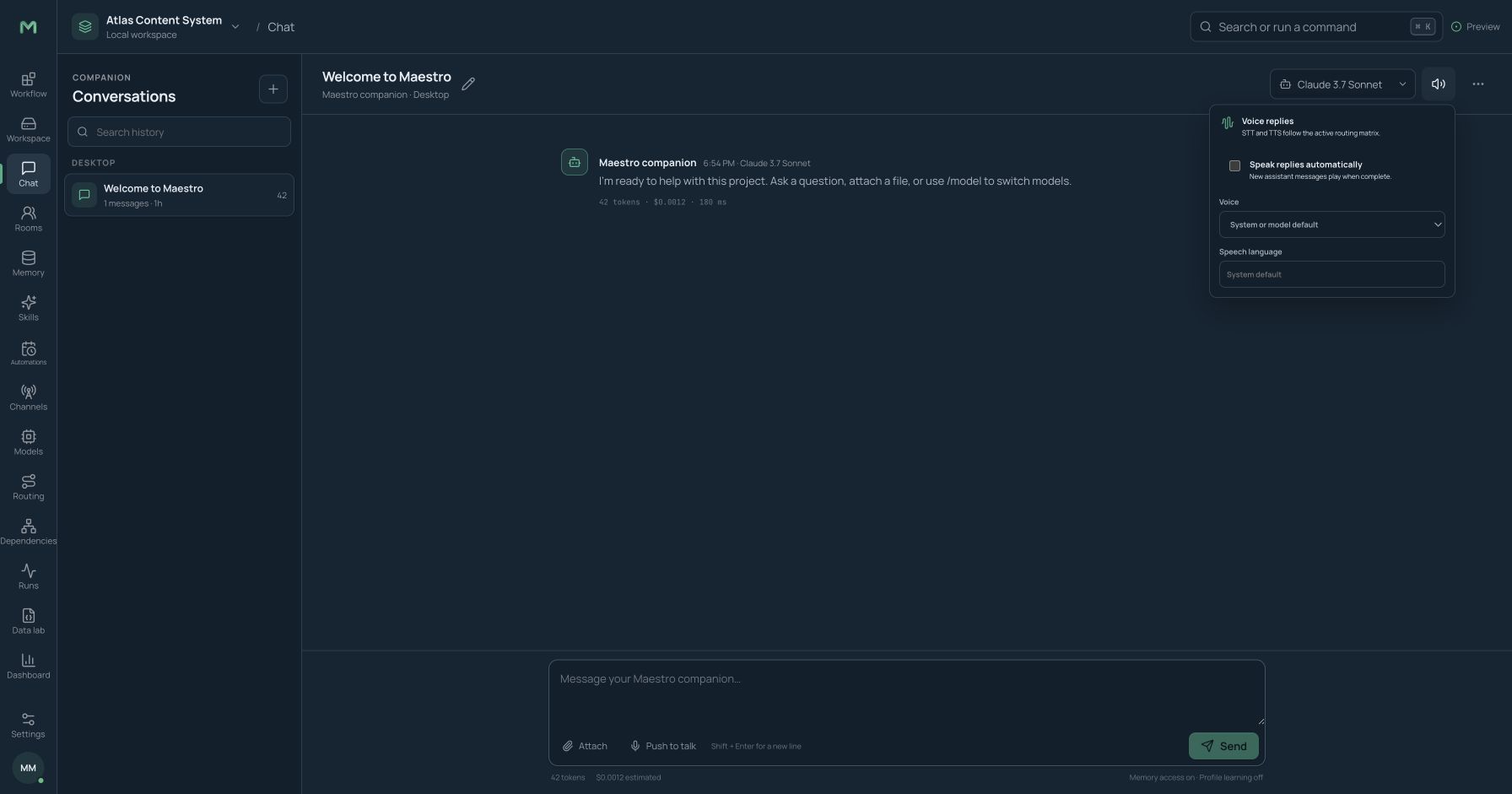
Choose Voice settings to select a voice and decide when replies should be spoken. Voice artifacts remain attached to the session. Gateway channels can also transcribe inbound voice memos and send outbound audio. A user-registered voice-cloning-capable model can be used only when explicitly configured.
Multi-agent rooms
A room is a persistent shared conversation between you and several independently configured agents. Each participant keeps its own identity, model, tools, and skills while reading a shared transcript.
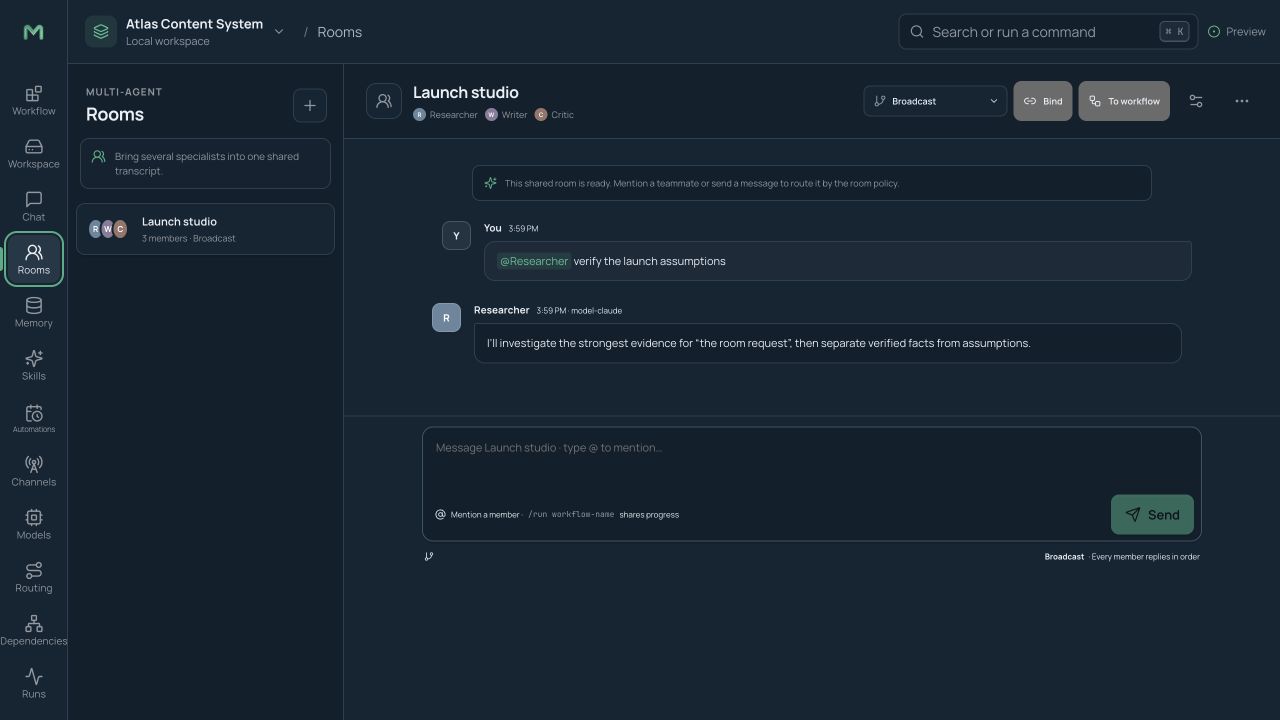
Create a room
- Open Rooms and choose New room.
- Add agents and review each participant's model, tool, and skill access.
- Select how unaddressed messages are routed: broadcast, round-robin, or moderator agent.
- Optionally bind a paired group channel.
Use @agent-name to address one participant. Messages without a mention follow the room policy. When the shared transcript approaches the smallest participant context limit, Maestro summarizes older turns and shows a compression marker; the original remains in the event log.
Rooms can launch workflows and stream run progress back into the transcript. A recurring collaboration pattern can be converted into an editable workflow skeleton, where participants become Agent nodes. Rooms are persistent sessions, so they can be searched and resumed from other surfaces.
Persistent memory
Memory lets agents retain facts, preferences, project context, and environment details across sessions and restarts. Every entry is visible and controllable by the user.
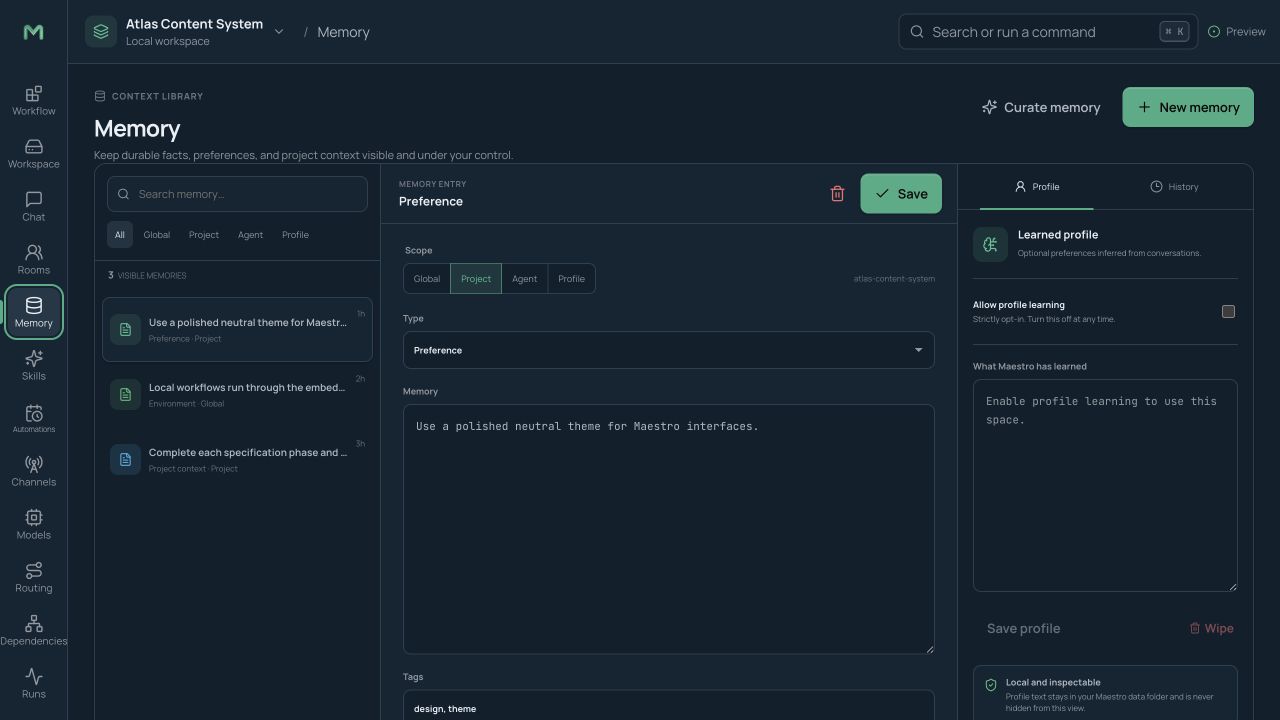
Memory scopes include global, project, agent, and profile. Use the narrowest scope that fits the fact. Project exports exclude global and profile memory unless deliberately included through a separate process.
Find and curate memory
- Search past memory, runs, sessions, and transcripts with full-text recall.
- Open a result to see its source before relying on it.
- Add or edit a fact directly.
- Delete, merge, or prune stale and duplicate entries.
- Use the memory journal to undo a curation change.
- Run the agent-curated consolidation loop to propose cleanup.
User-profile modeling is separate and strictly opt-in. The resulting working-style and preference profile is inspectable, exportable, and wipeable in one action. A visible indicator appears whenever an agent can use memory.
Skills
Skills are reusable capabilities stored in the open SKILL.md format with metadata, instructions, and optional scripts or resources. They load only when needed and can be attached to an agent's allowlist.
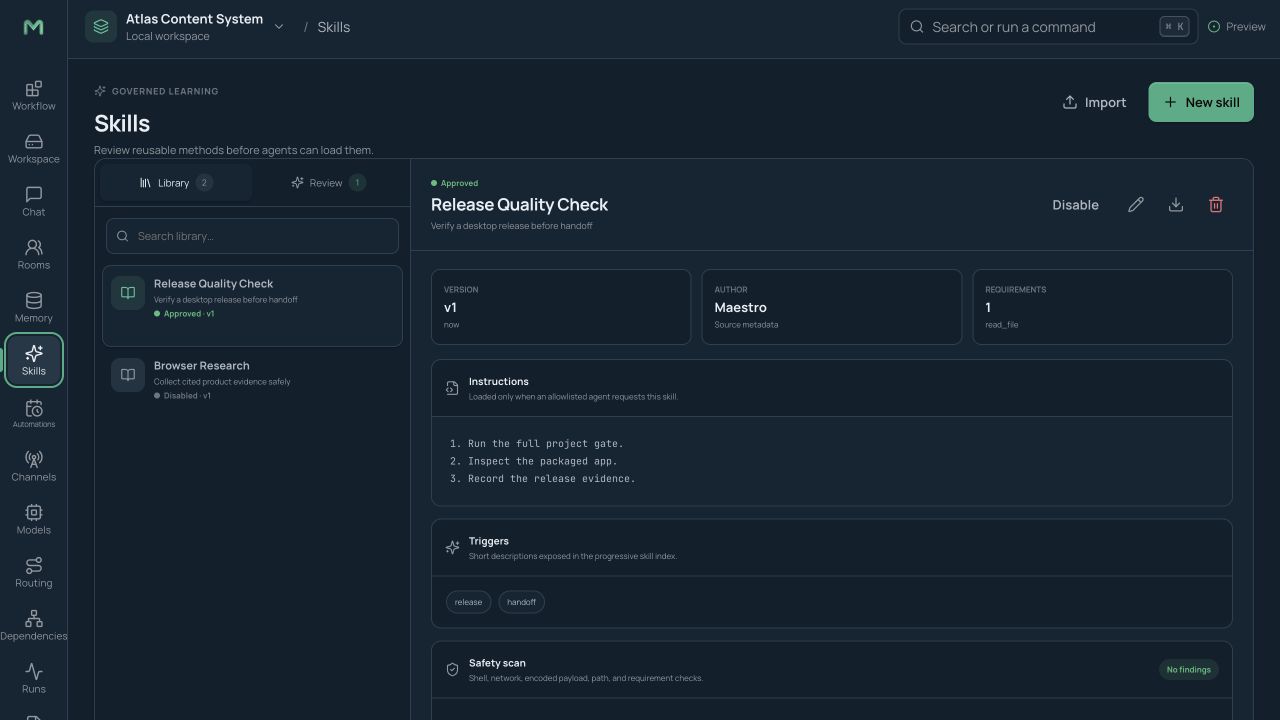
The bundled library covers common areas such as Git and GitHub, diagramming, documentation, data work, MLOps, web research, and media production. Browse, preview, enable, or disable skills per project.
Review agent-created skills
After solving a difficult repeatable task, an agent may propose a draft skill. Drafts cannot run until a person approves them in the review queue. Inspect the instructions, files, scripts, requested tools, and safety scan; edit or reject anything inappropriate.
Skill improvements are versioned and diff-reviewable. Roll back to a known version in one action. Imported skills pass a static safety review before activation, and executable parts remain subject to the selected backend and sandbox policy. Skills can be imported or exported in the open standard; the dependency view shows agent-to-skill use, and run logs record which skills loaded.
Automations and tasks
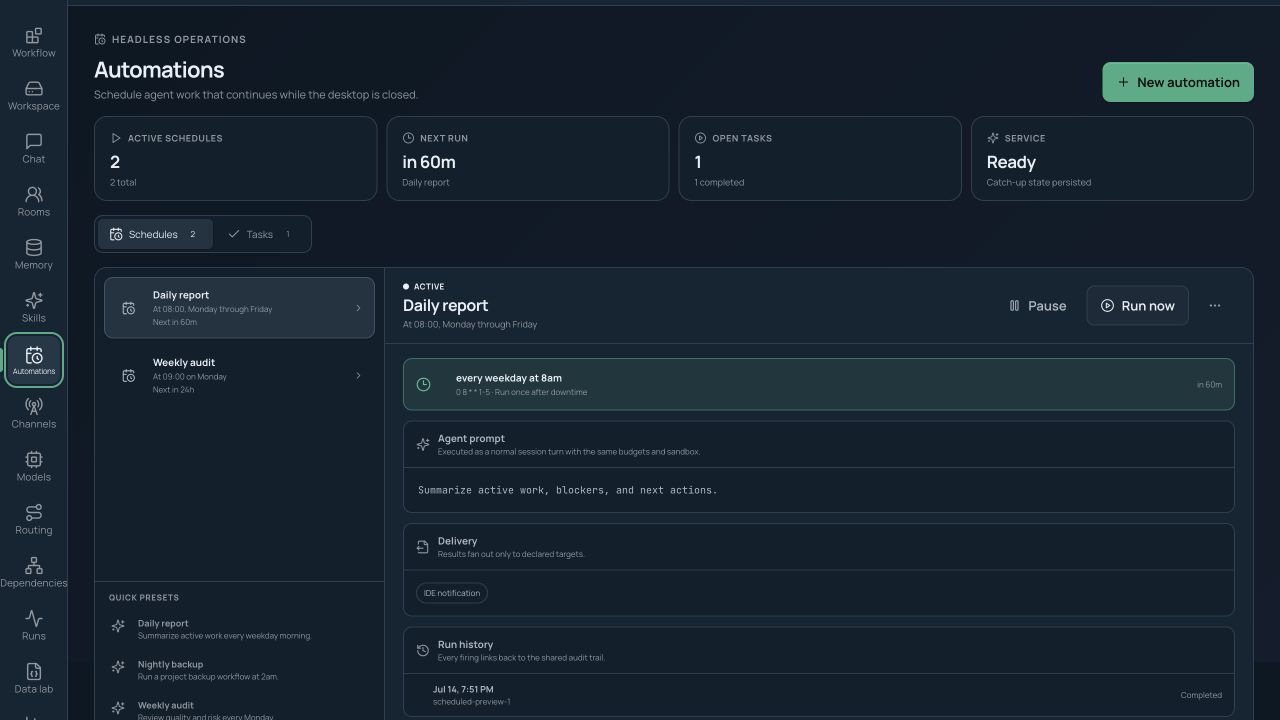
Automations trigger a workflow or agent prompt once, on a recurring schedule, from a watched folder, or through a webhook. They run in the Maestro service so recurring work continues with the desktop app closed.
Create a schedule
- Open Automations and choose New automation.
- Choose a workflow or enter an agent prompt.
- Enter a schedule in natural language—such as “every weekday at 8am”—or use a cron expression.
- Confirm Maestro's parsed time, time zone, and next occurrences.
- Select delivery targets: app notification, file output, or one or more connected channels.
- Set budgets, backend, autonomy, approval behavior, and missed-run catch-up policy.
Quick presets cover daily reports, nightly backups, and weekly audits. Existing jobs can be edited, paused, resumed, deleted, or run immediately. Their history links to normal run records.
Headless jobs follow the same cost, token, time, sandbox, and autonomy limits as interactive runs. If an action needs approval, the job pauses and sends an approval request through the configured delivery channel. On service restart, the job's Run once or Skip catch-up policy determines how a missed occurrence is handled.
The Tasks area is a lighter queue for pending and completed agent work created manually, by schedules, or from messaging requests. Each item shows status, owner, and a link to the resulting session or run.
Messaging channels and gateway
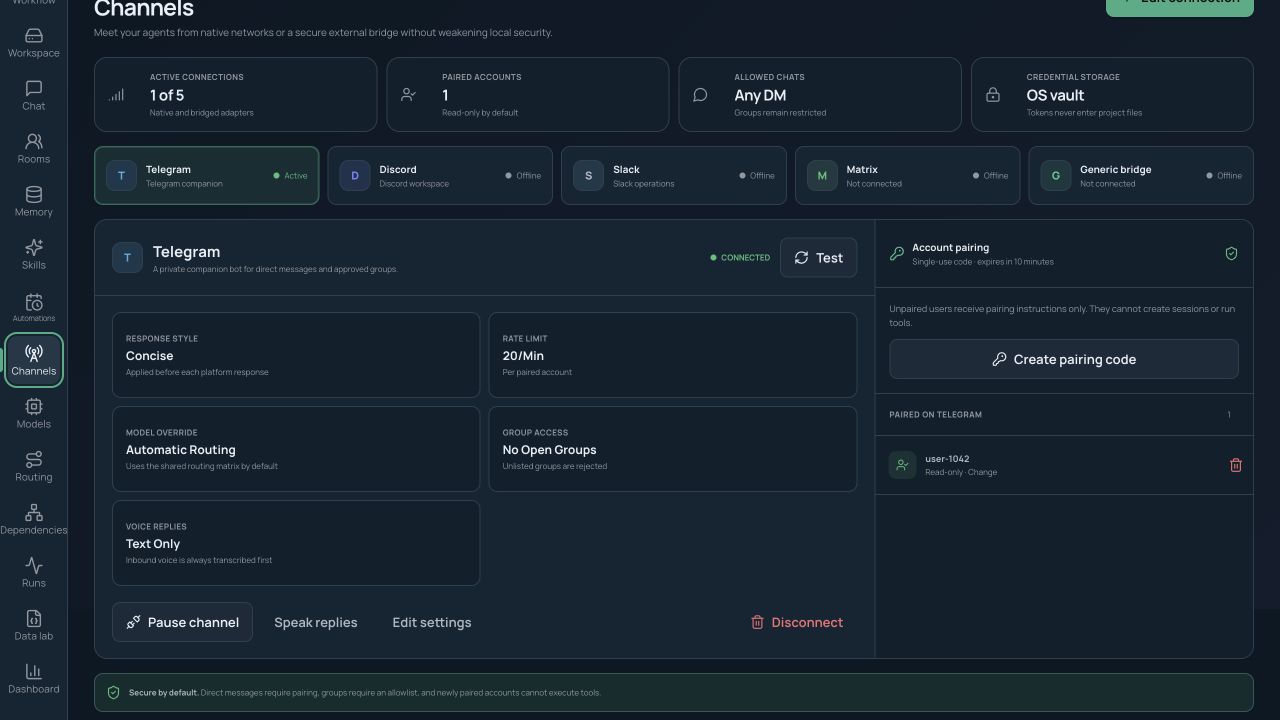
The gateway connects Maestro to Telegram, Discord, Slack, Matrix, and an authenticated generic WebSocket bridge. The bridge can extend Maestro to WhatsApp, Signal, Feishu/Lark, WeChat, WeCom, or another network without changing Maestro itself.
Connect a channel
- Open Channels and select the platform.
- Save its token or shared secret in the credential vault.
- Configure allowed chats, response behavior, and rate limits.
- Start the adapter and complete the pairing-code direct-message flow.
- Assign read-only or tool-execution permission to the paired identity.
- Optionally bind a channel or group to an existing session or room.
Only paired identities can address an agent. Read-only pairings cannot invoke write tools, and privileged remote actions enter the approval flow. A session can continue across surfaces: start research on the desktop, continue from Telegram, and return to the same canonical history later.
Channels can receive run results, alerts, automation output, files, and optional speech. Inbound voice uses speech-to-text; outbound voice uses text-to-speech. Generic bridges should use wss://, enforce their own origin or network policy, and authenticate with the shared secret stored in Maestro's vault.
Background service status
Schedules, gateways, rooms, and the remote console depend on the Maestro service. The desktop status indicator distinguishes connected, starting, unavailable, and degraded states. If the service is unavailable, desktop-only authoring can continue, but headless delivery and remote surfaces will not run until it reconnects.
Next: Work with files, backends, web tools, MCP, and trajectory data.